
In this tutorial, you're going to learn how to build and embed an AI customer-support chatbot for your website.
A chatbot that answers questions instantly using a knowledge base that you provide.
We're going to use Lindy AI to do this and no coding knowledge is required. This will transform your customer support. Let's get into it.
Setting Up Your Lindy AI Chatbot Widget
Lindy AI offers a user-friendly flow editor that makes it easy to create a customized chatbot for your website. Simply . Here's how to get started:
Step 1: Access the Flow Editor
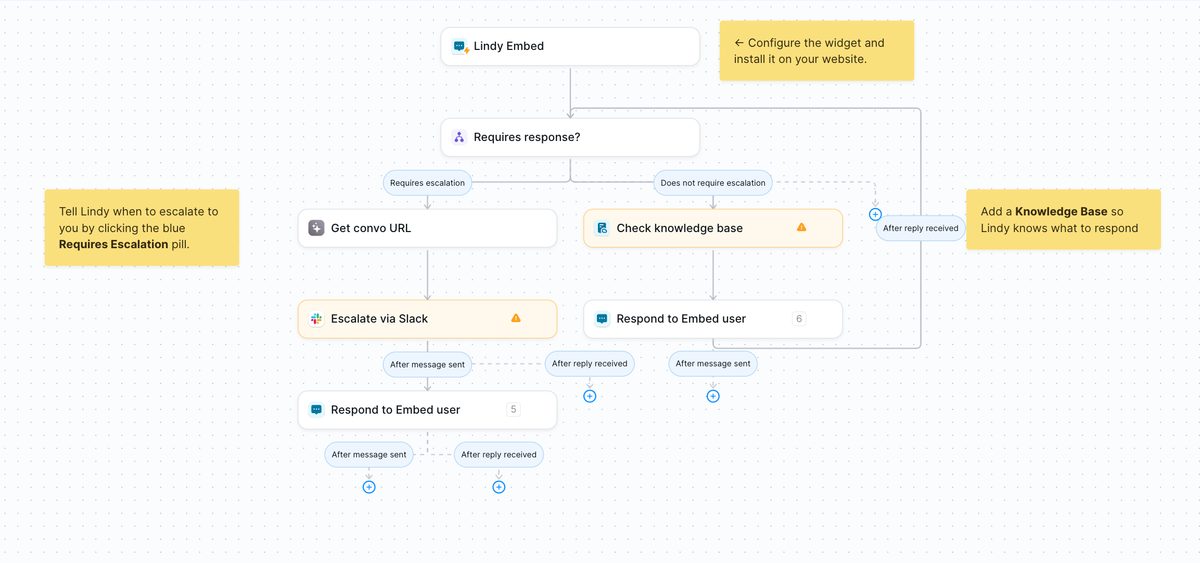
Log into your Lindy AI account and click New Lindy. Look for the "website customer support" template to begin your chatbot setup. This is what it looks like:
Step 2: Configure the Chatbot Widget
Click on the widget configuration option in the flow editor. Here, you can customize various aspects of your chatbot:
- Name: Choose a name for your chatbot (e.g., "Talk to Me")
- Color: Select a color that matches your brand
- Shape: Choose between a circle or rounded rectangle
- Position: Decide whether to place the widget on the left or right side of your website
- Logo and Icon: Upload your company logo and a custom icon
- Conversation Starters: Add prompts to help users begin interacting with the chatbot
Step 3: Set Up Escalation Rules
Determine when your chatbot should escalate conversations to a human agent. In the flow editor, look for the "requires escalation" option and customize the conditions. For example, you might want to escalate conversations involving:
- Rush orders
- Customer complaints
- Refund requests
You can set up email or Slack notifications for these escalations, ensuring that your team is promptly alerted when human intervention is needed.
Creating a Knowledge Base for Your AI-Powered Chatbot
The heart of your chatbot's intelligence lies in its knowledge base. Here's how to build a robust knowledge base for your Lindy AI chatbot:
Step 1: Access the Knowledge Base Section
In the flow editor, find the "Check Knowledge Base" option. This is where you'll input information for your chatbot to reference when answering user queries.
Step 2: Add Information to Your Knowledge Base
There are several ways to populate your chatbot's knowledge base:
- Paste Website FAQs: Copy and paste your existing FAQs directly into the knowledge base
- Upload Files: Import documents containing relevant information
- Connect to Apps: Integrate with external applications to pull in data
- Manual Input: Type in policies, procedures, or other important information directly
For example, you could input your company's policies, product information, or common customer inquiries and their corresponding answers.
Embedding the Chatbot Widget on Your Website
Once you've configured your chatbot and built its knowledge base, it's time to add it to your website. Here's how:
Step 1: Get the Embed Code
In the Lindy AI flow editor, locate the embed section and copy the provided code snippet.
Step 2: Add the Code to Your Website
The exact process may vary depending on your website platform, but generally, you'll need to:
- Access your website's HTML
- Locate the appropriate section to add the code (often near the end of the <body> tag)
- Paste the Lindy AI embed code
- Save and publish your changes
Step 3: Test Your Chatbot
Visit your live website and interact with the chatbot to ensure it's working correctly. Try asking questions that are covered in your knowledge base to verify that the AI is providing accurate responses.
Managing and Monitoring Your Lindy AI Chatbot
To ensure your chatbot continues to provide value, it's important to monitor its performance and make improvements over time:
- Review Conversation History: Regularly check the chatbot's conversation logs to understand common user queries and identify areas for improvement
- Analyze Performance: Use Lindy AI's analytics tools to track metrics like response time, user satisfaction, and escalation rates
- Refine Your Knowledge Base: Continuously update and expand your chatbot's knowledge base based on user interactions and feedback
- Adjust Escalation Rules: Fine-tune your escalation criteria to ensure the right balance between AI assistance and human support
Maximizing the Benefits of Your AI-Powered Chatbot Widget
An AI-powered chatbot widget can offer numerous advantages for your website and business:
- 24/7 Customer Support: Provide instant assistance to users around the clock
- Reduced Workload: Free up your support team to focus on complex issues
- Improved User Experience: Offer quick answers to common questions, enhancing user satisfaction
- Data Collection: Gather valuable insights about user needs and preferences
- Scalability: Handle multiple conversations simultaneously without increasing costs
By leveraging tools like Lindy AI, you can create a powerful, customized chatbot that enhances your website's customer support flow and provides real value to your visitors.
Want to learn more about Lindy? Watch our interview with the founder here:
Ready to take your website's customer support to the next level with AI? At No Code MBA, we're passionate about empowering entrepreneurs and businesses with cutting-edge no-code tools. If you want to learn more about building powerful applications without coding, sign up for our courses and join a community of innovative builders!
Frequently Asked Questions
What is an AI-powered chatbot widget?
An AI-powered chatbot widget is a virtual assistant that uses artificial intelligence to interact with website visitors, answer questions, and provide support 24/7 without human intervention.
How does Lindy AI's chatbot differ from other chatbot solutions?
Lindy AI offers a user-friendly flow editor, customizable widgets, and the ability to create a comprehensive knowledge base. It also provides easy integration with various websites and platforms.
Can I customize the appearance of my Lindy AI chatbot?
Yes, you can customize various aspects of your chatbot, including its name, color, shape, position, logo, and icon to match your brand and website design.
How do I create a knowledge base for my chatbot?
You can create a knowledge base by importing FAQs, uploading files, connecting to external apps, or manually inputting information into the Lindy AI platform.
Can the chatbot escalate conversations to human agents?
Yes, you can set up escalation rules in Lindy AI to transfer complex queries or specific types of conversations to human agents via email or Slack notifications.
How do I add the Lindy AI chatbot to my website?
To add the chatbot to your website, you'll need to copy the embed code provided by Lindy AI and paste it into your website's HTML, typically near the end of the <body> tag.
Is it possible to monitor the performance of my chatbot?
Yes, Lindy AI provides tools to review conversation history, analyze performance metrics, and make improvements to your chatbot over time.
Advertiser disclosure: some links on this website are affiliate links, meaning No Code MBA may make a commission if you click through and purchase.